




How to remove the background of a photo in a video
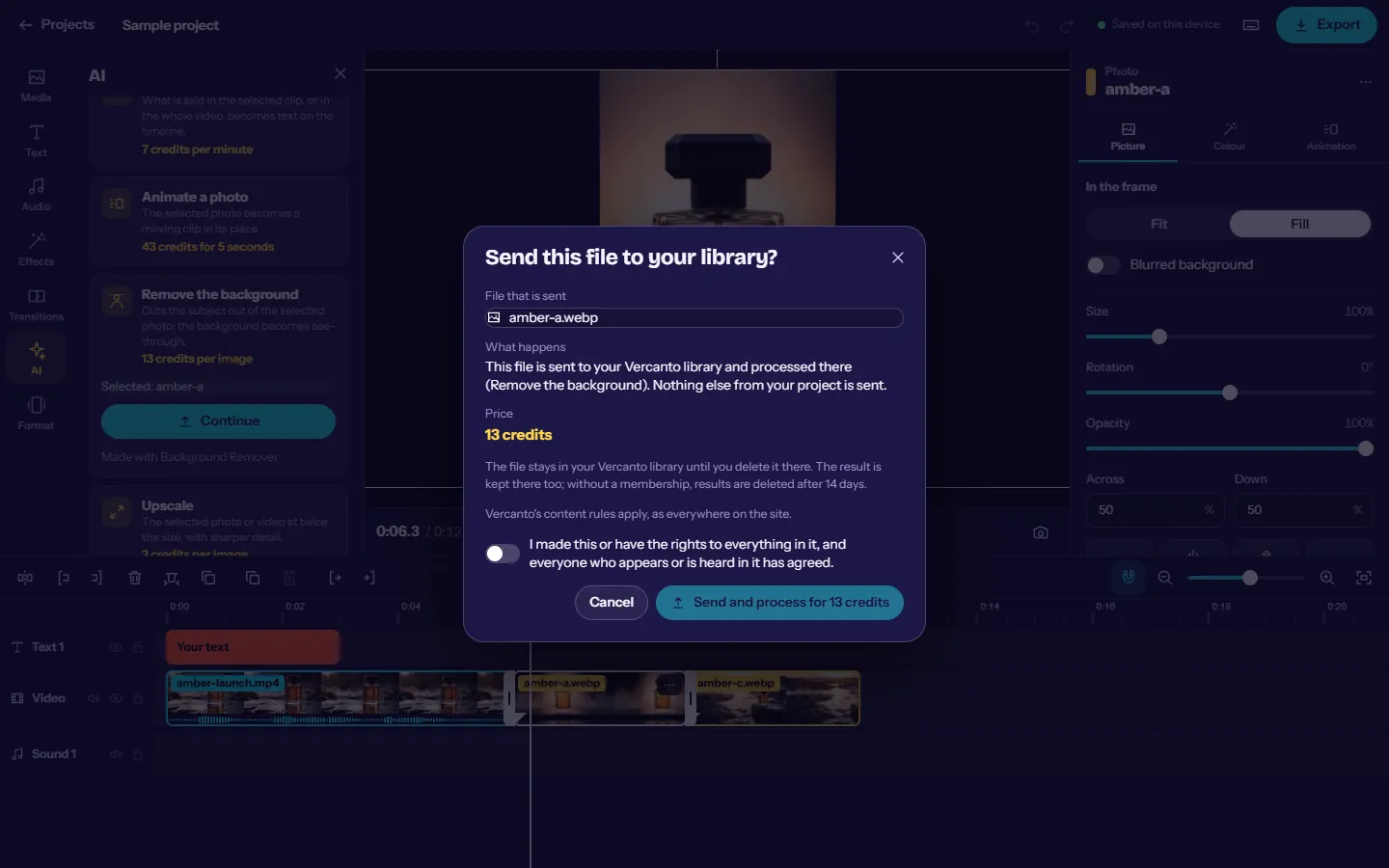
Select the photo on your timeline, open AI and choose "Remove the background". It uses credits: after you see the file and the price and confirm, the photo is sent to your Vercanto library to be processed. The cut-out, with a see-through background, then takes the photo's place, so what is under it shows through.
Uses credits
Open the editor
Free, in your browser: no account, no watermark, no subscription required. Your files stay on your device unless you choose a paid AI action.
Steps
- Sign in. Put the photo on an overlay track above your video (the overlay button on its tile) and select it.
- Open AI, then "Remove the background", and press Continue.
- Check the file, the price and the rights box, and send.
- Move and resize the cut-out on the picture.
Updated on .