
Generate media in Cursor
Add Vercanto to Cursor's MCP settings and ask the agent for images, cut-outs and voiceovers while you build the interface.
The first time you use it, your app opens a sign-in page. Use the same account everywhere to share one balance and library.
What you can make from Cursor
Mock-up imagery
Photos and illustrations that fit the design, instead of grey boxes.
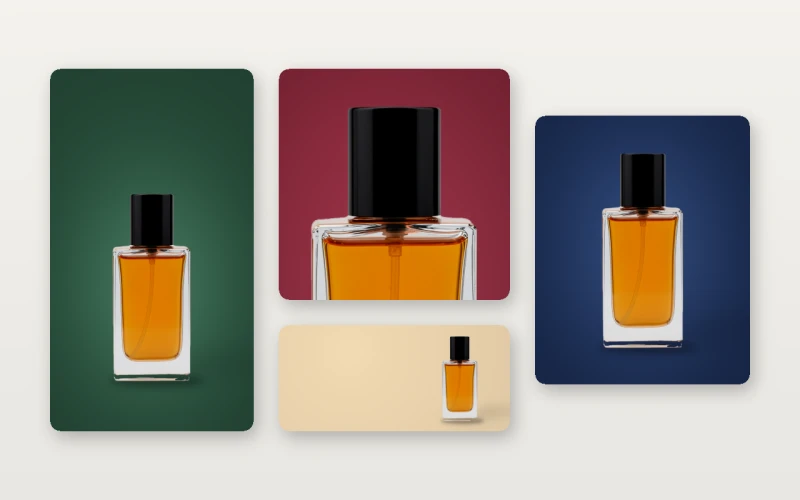
Cut-outs
Product and team photos with the background removed.
Crisp assets
Logos and photos enlarged for high-density screens.
Demo voiceover
Narration for a product demo, from your script.
Connect Cursor
The same steps as in the connection guide.
- Add the block below to ~/.cursor/mcp.json (or your project's .cursor/mcp.json).
- Open Cursor settings, find the server under MCP and sign in.
Menu names change between app versions. Look for connectors, apps, integrations or MCP servers.
Opens Cursor and asks you to confirm the server. Then sign in under Cursor settings, MCP. Or add the block below by hand.
{
  "mcpServers": {
    "vercanto": {
      "url": "https://vercanto.com/mcp"
    }
  }
}
Things to ask Cursor
Ask in your own words. Each request links to the job it uses.
Good to know
- Put the block in ~/.cursor/mcp.json to use it in every project, or in .cursor/mcp.json for one project.
- After adding it, open Cursor settings, find the server under MCP and sign in.