


How to do it in the video editor
One question per page, answered first, then the steps. The editing guides are free in your browser; the AI guides say what uses credits and where you see the price.
Open the editor
Free, in your browser: no account, no watermark, no subscription required. Your files stay on your device unless you choose a paid AI action.
Editing (free)
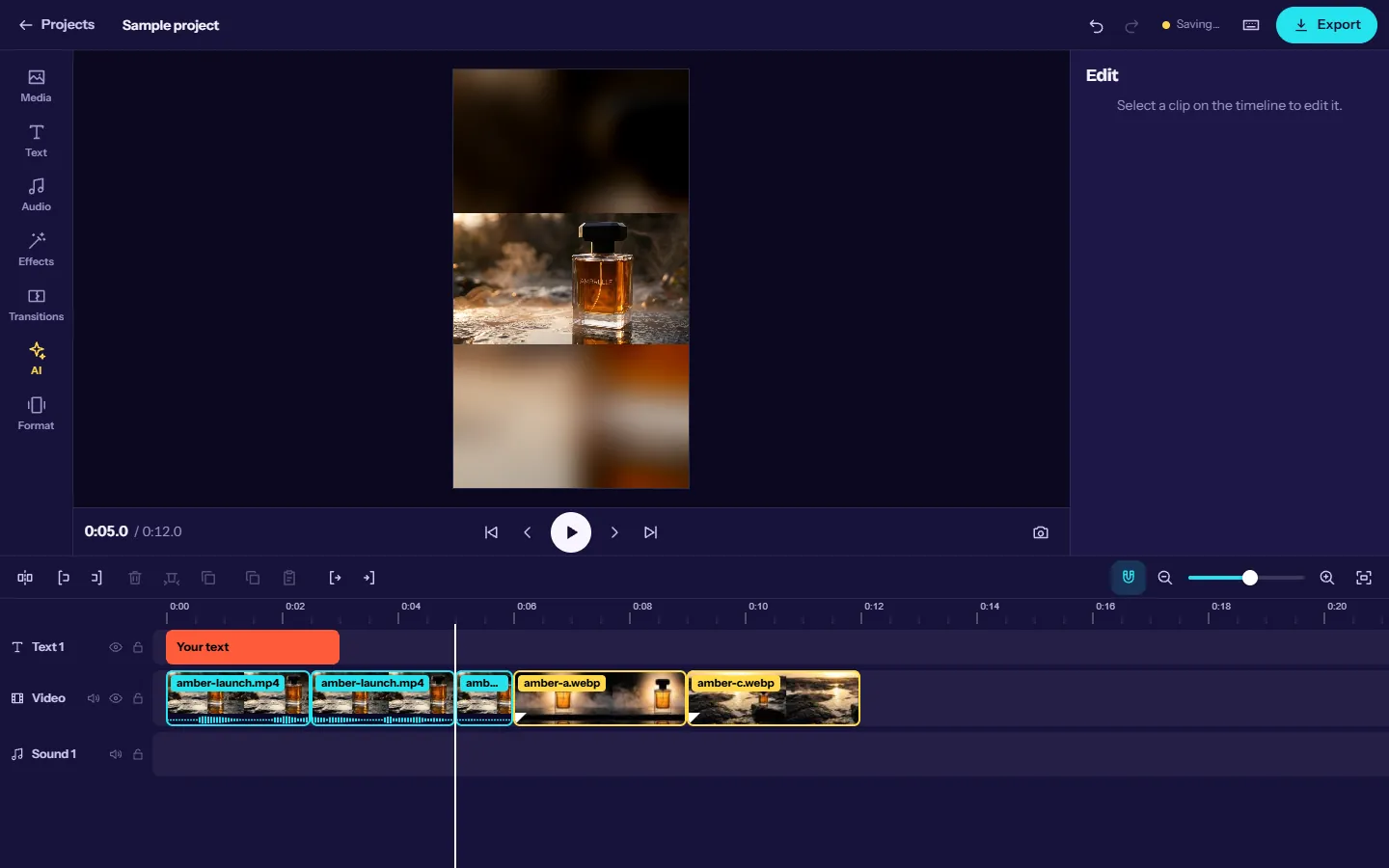 Free in the editorHow to cut a video into parts onlineSplit a video into as many parts as you like in your browser, then move, delete or export each part. No watermark; your files stay on your device unless you choose a paid AI action.
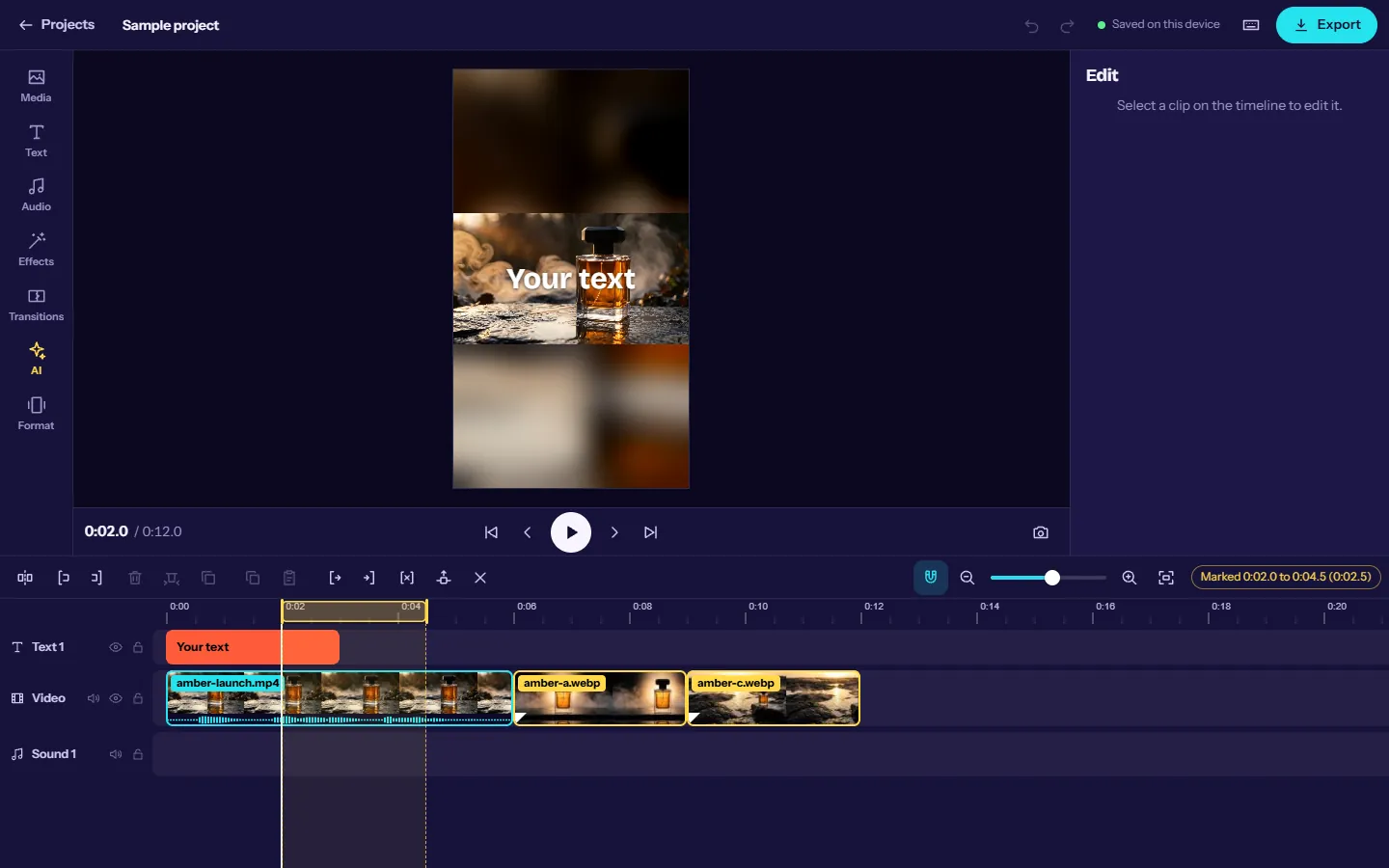 Free in the editorHow to remove a part from the middle of a videoMark the part you do not want and cut it out; the two sides join. In your browser: your files stay on your device unless you choose a paid AI action.
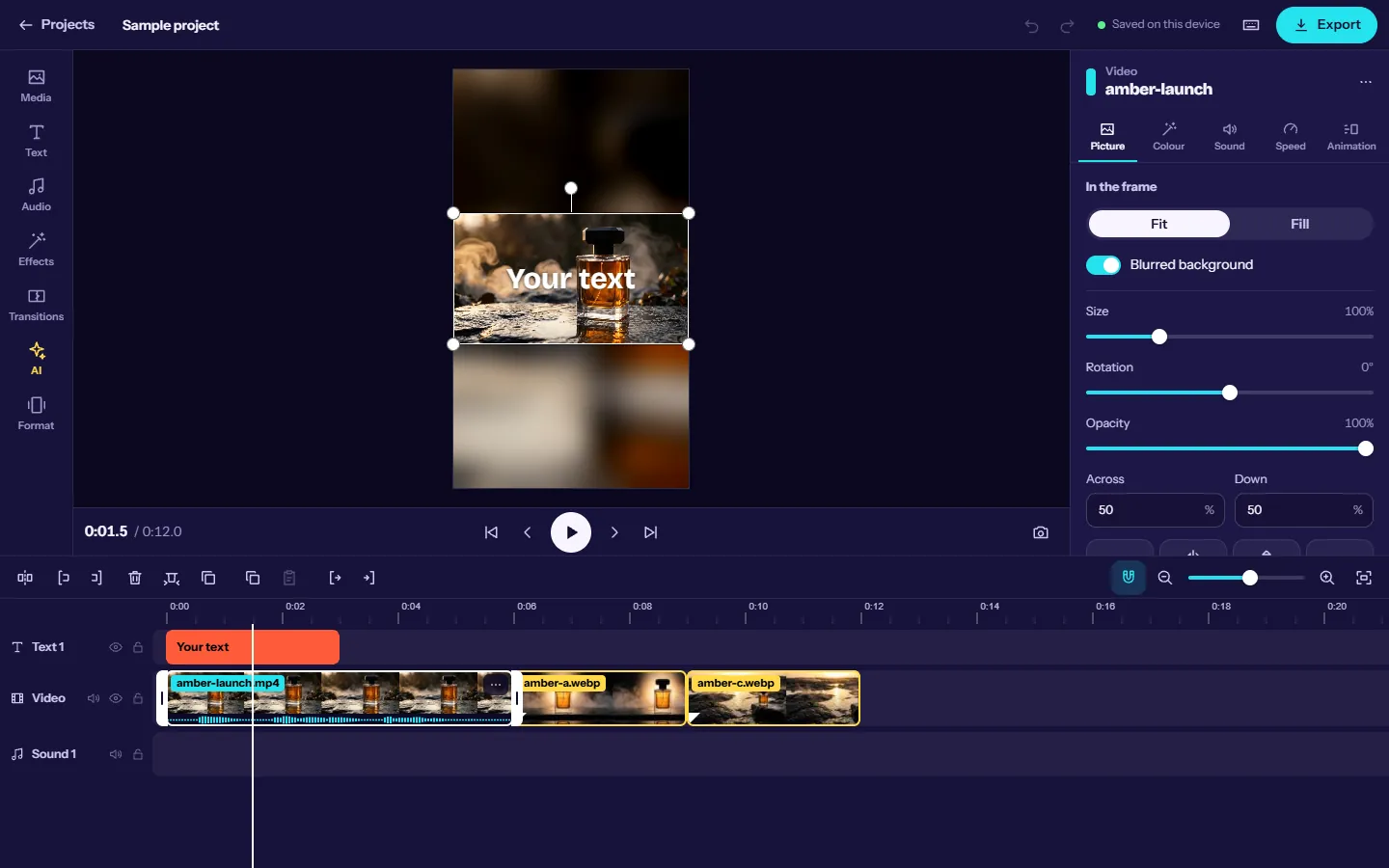 Free in the editorHow to trim a video onlineCut the start or the end off a video in your browser: drag an edge or trim to the playhead.
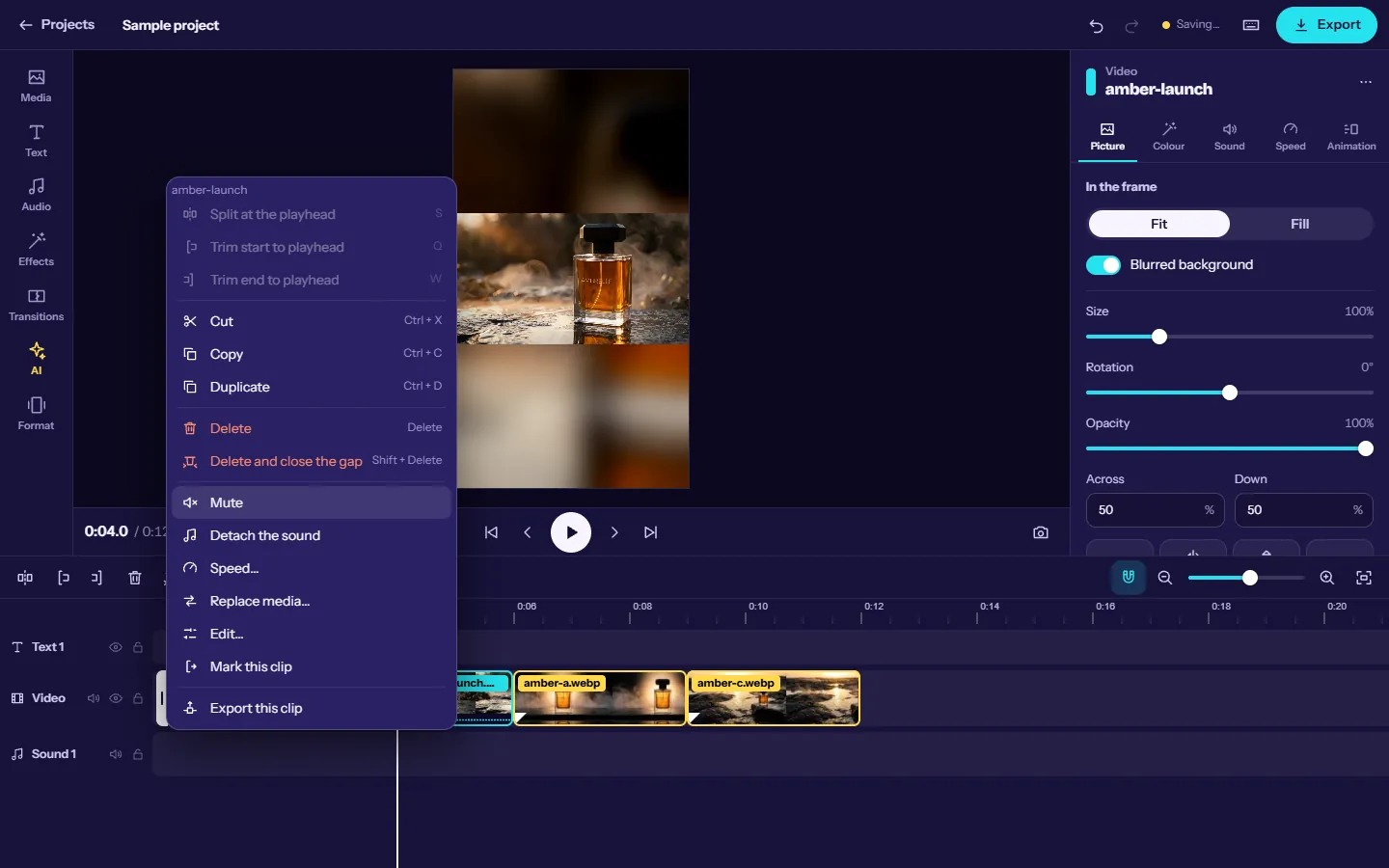 Free in the editorHow to save one part of a video as its own fileExport a single clip, a selection or a marked part as its own MP4, in your browser.
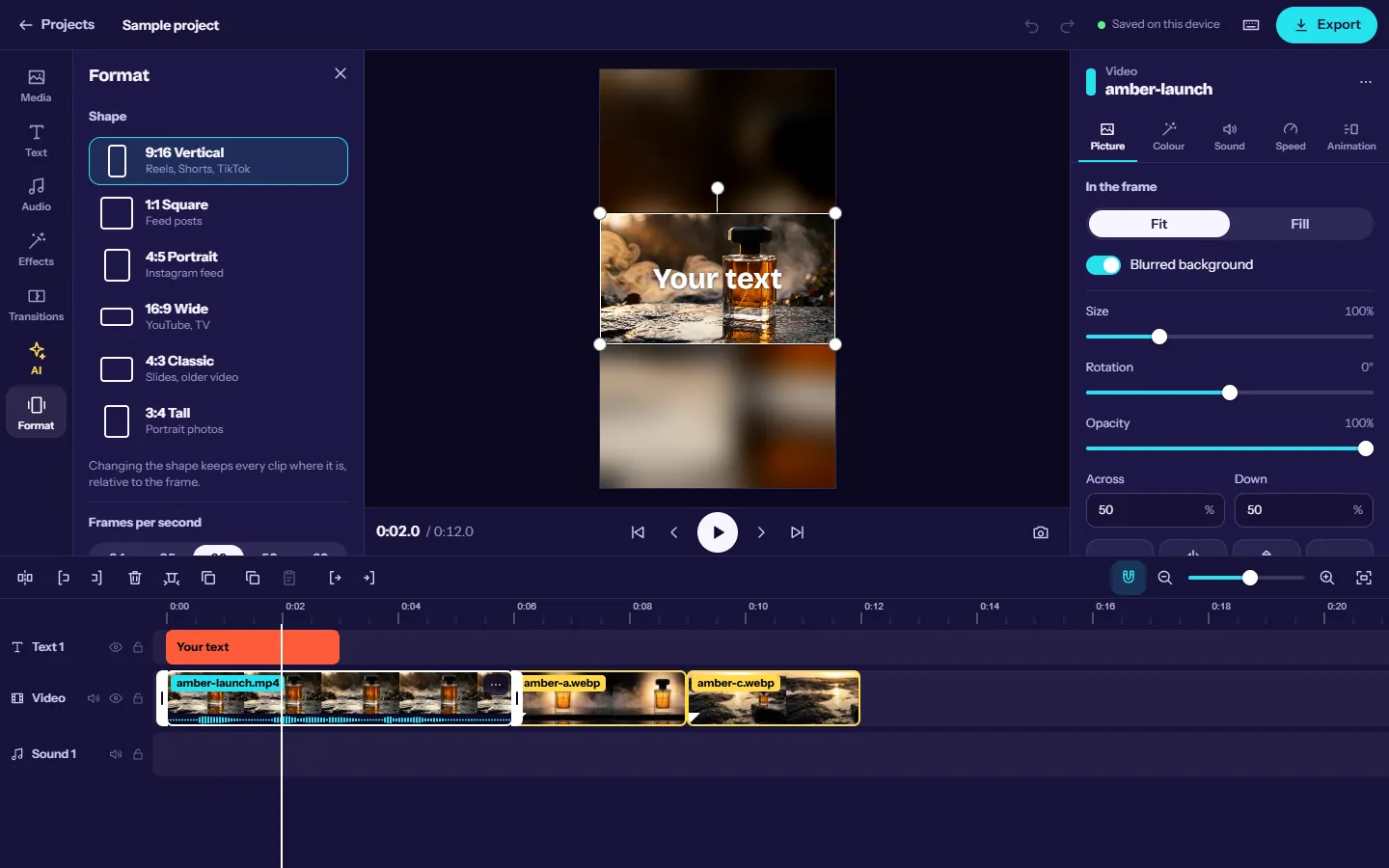 Free in the editorHow to make a vertical 9:16 videoTurn a wide video into a 9:16 vertical one for Reels, Shorts and TikTok, with a blurred background or a fill.
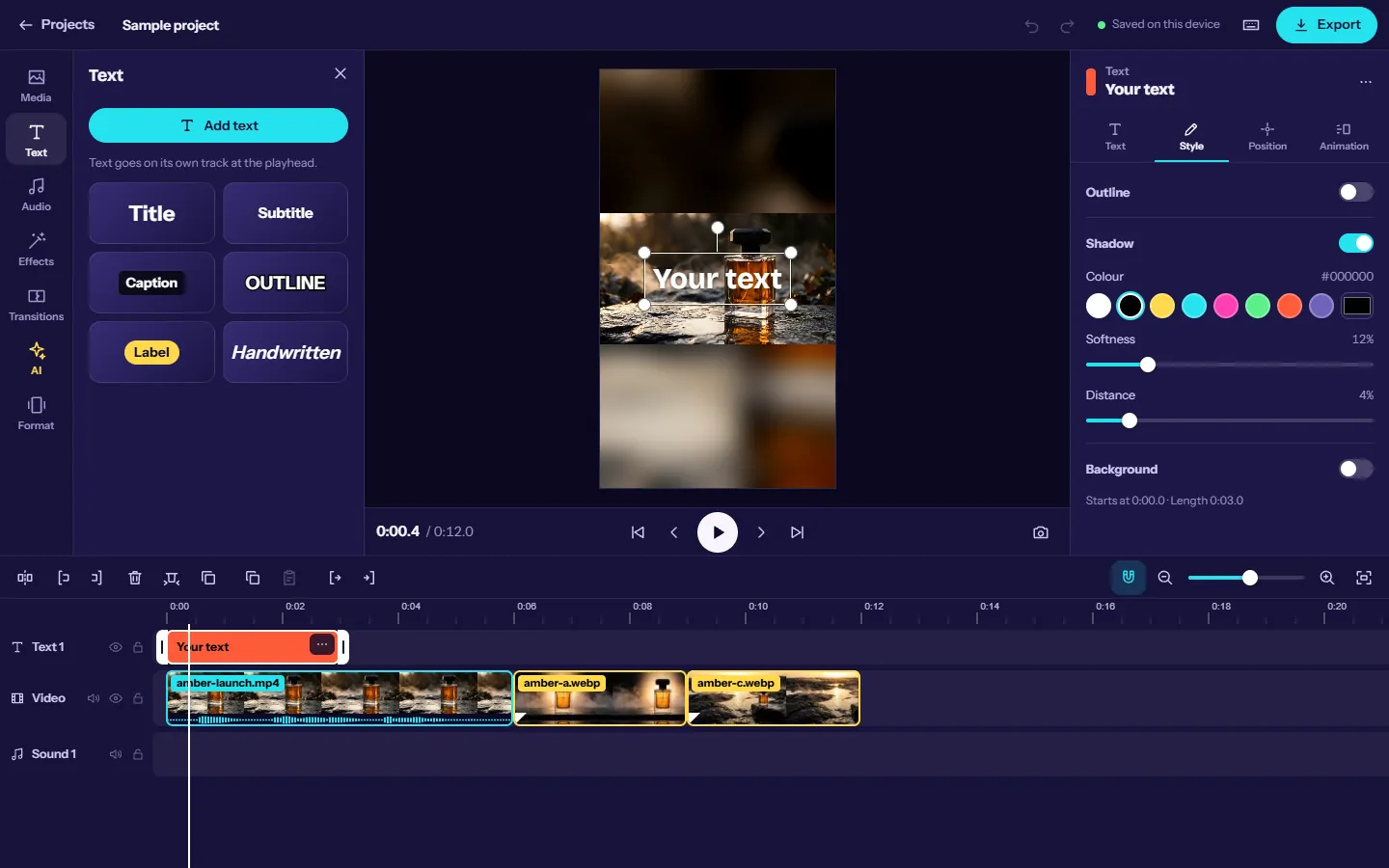 Free in the editorHow to add text to a video onlineAdd titles and captions with 16 fonts, outlines, shadows and backgrounds; animate them on and off.
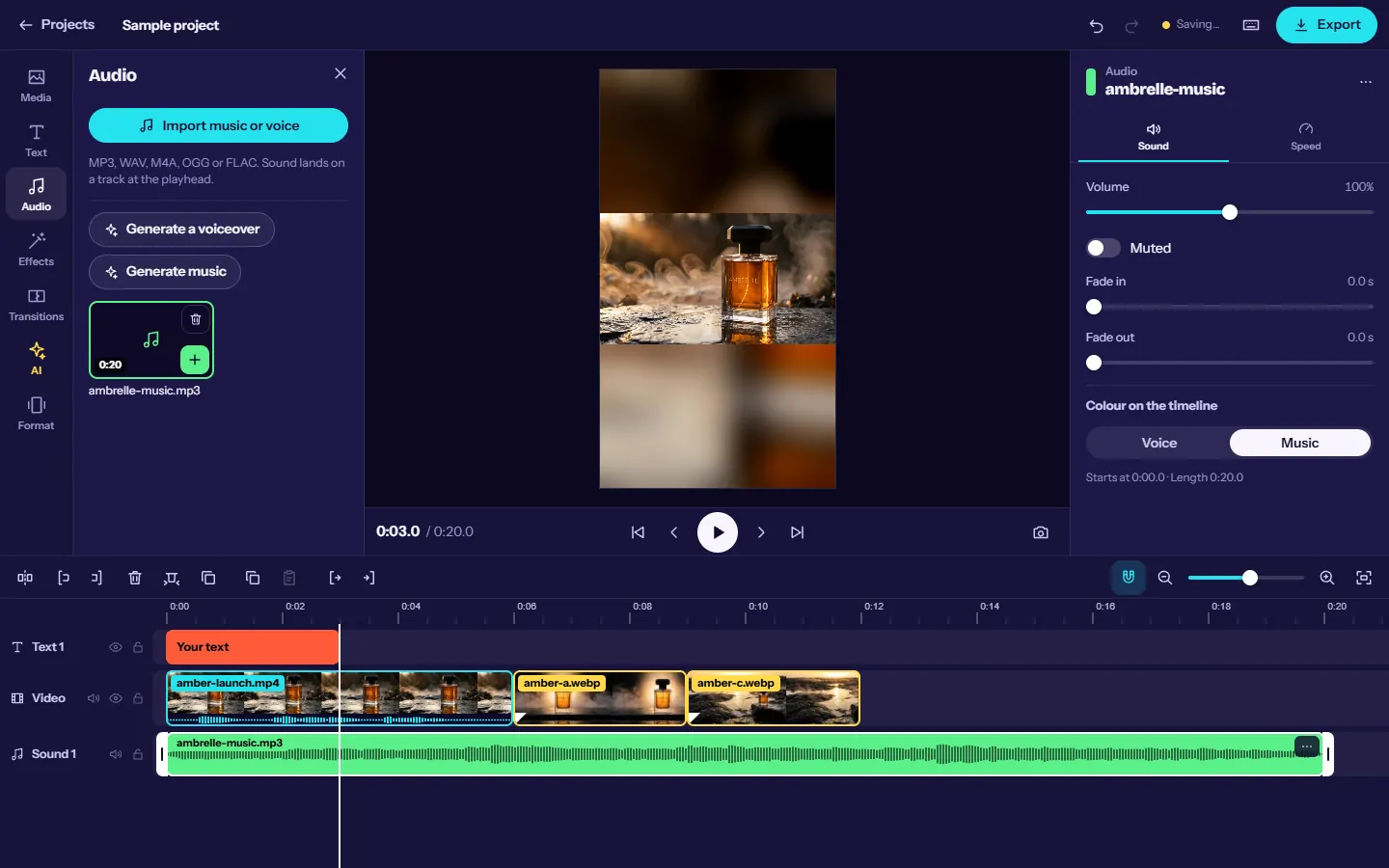 Free in the editorHow to add music to a video onlineLay music under your video, set its level, fade it in and out, and export one file.
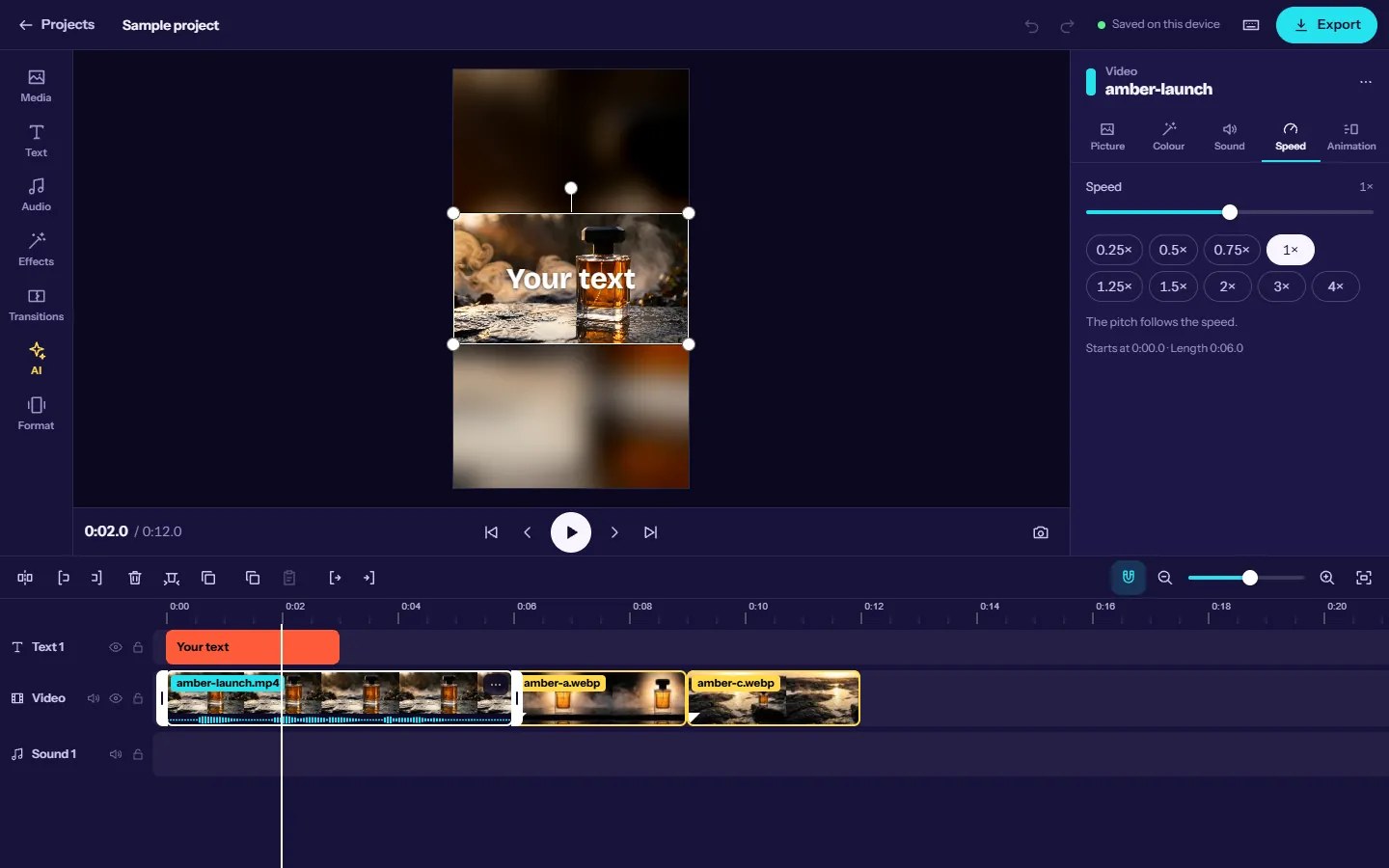 Free in the editorHow to speed up or slow down a videoChange a clip's speed from a quarter to four times, in your browser.
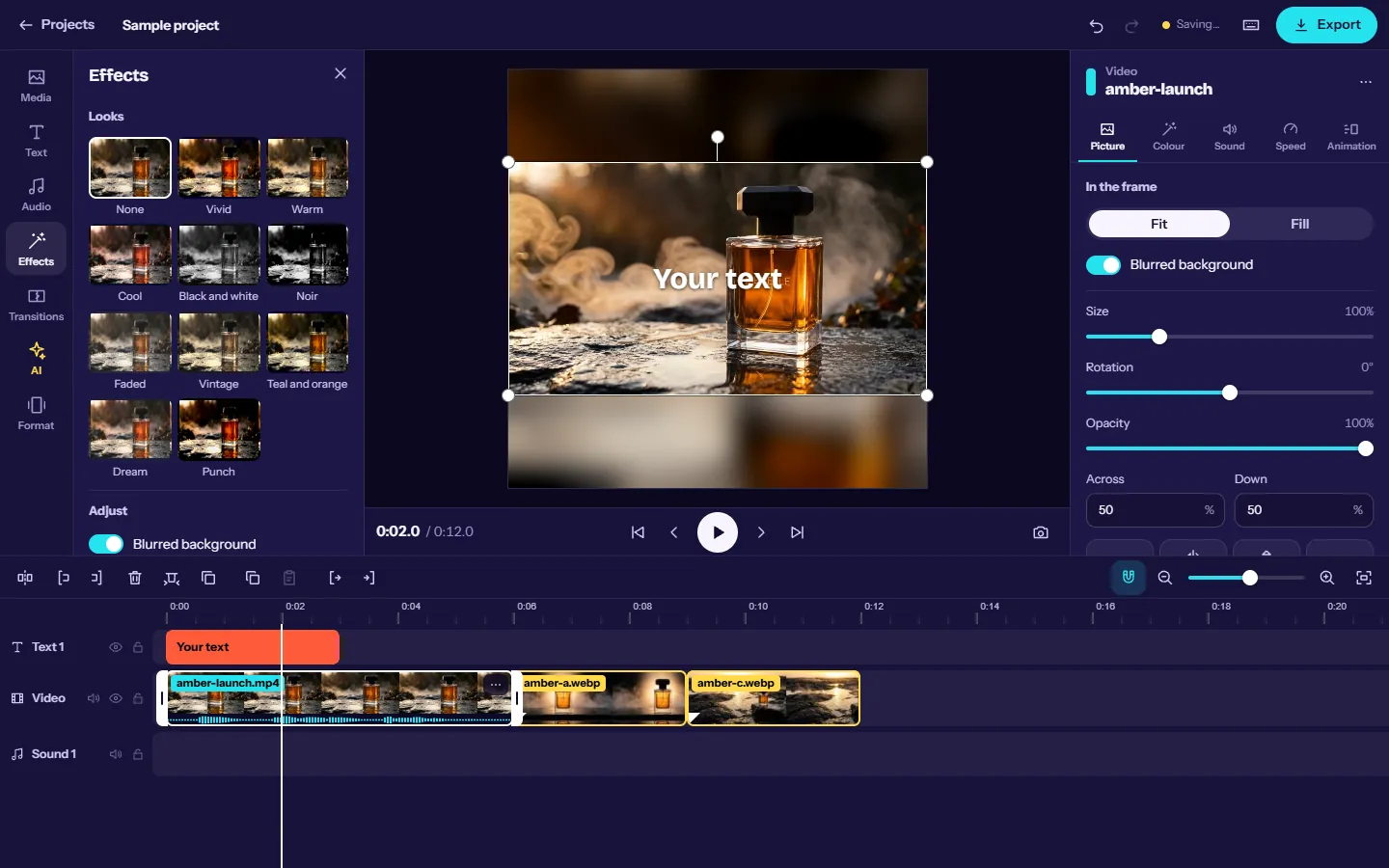 Free in the editorHow to blur the background of a videoFill the empty sides of a vertical or square video with a blurred copy of itself.
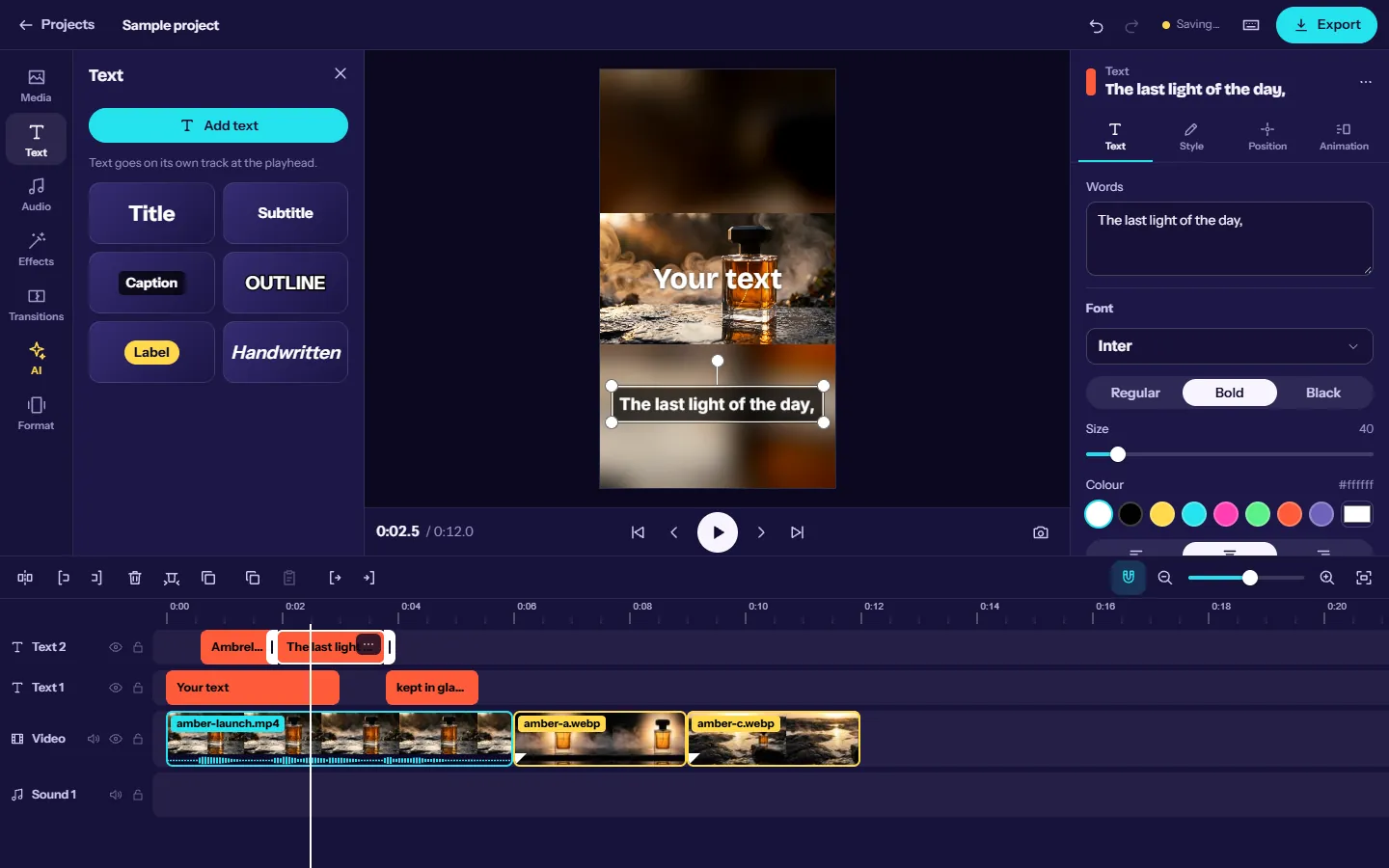 Free in the editorHow to add captions to a videoType captions yourself (free in the editor), or let Vercanto write them from the speech (uses credits).
AI tools (they use credits)
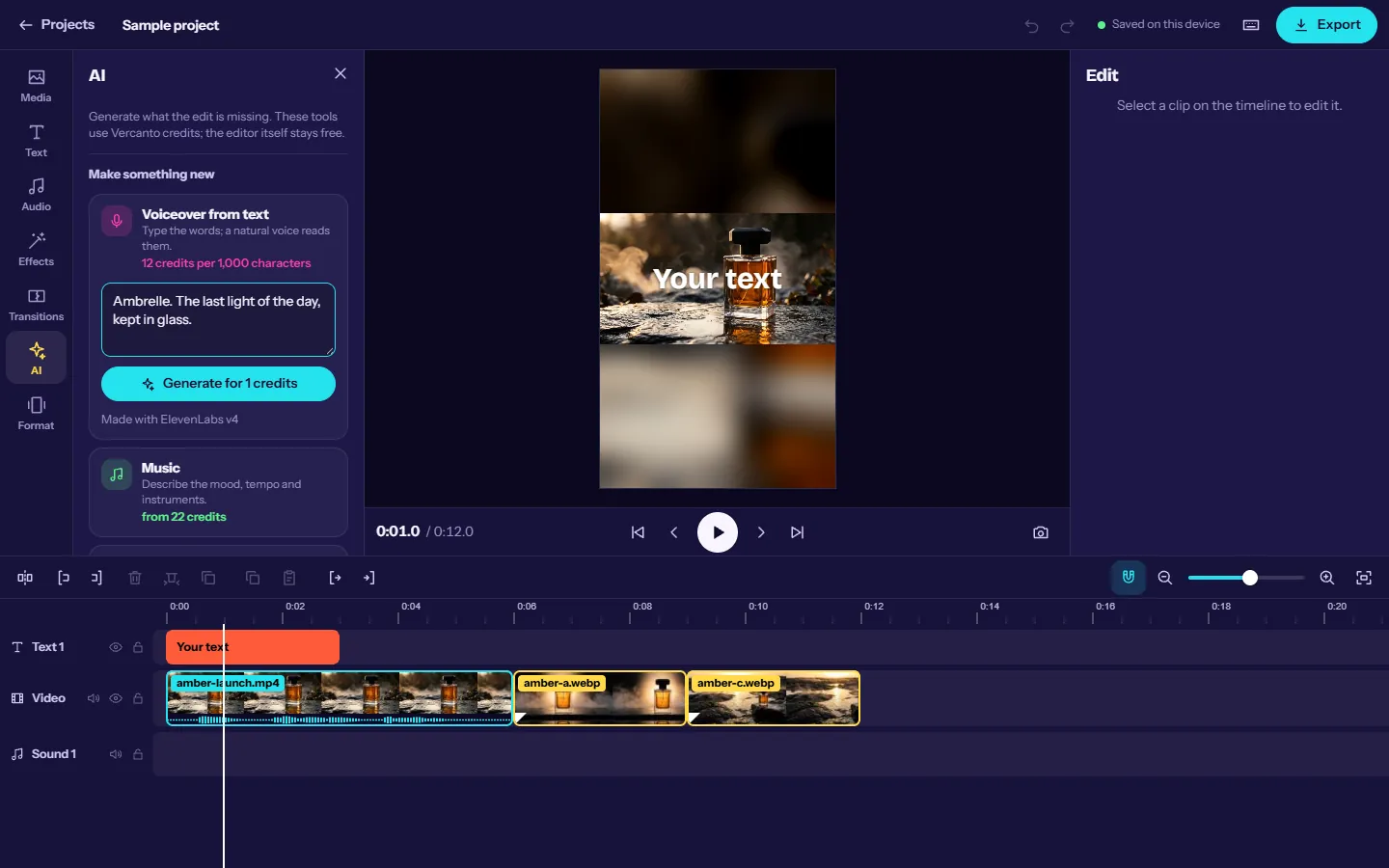 Uses creditsHow to add an AI voice-over to a videoType the words and a natural voice reads them; the voice-over lands on your timeline. Uses credits.
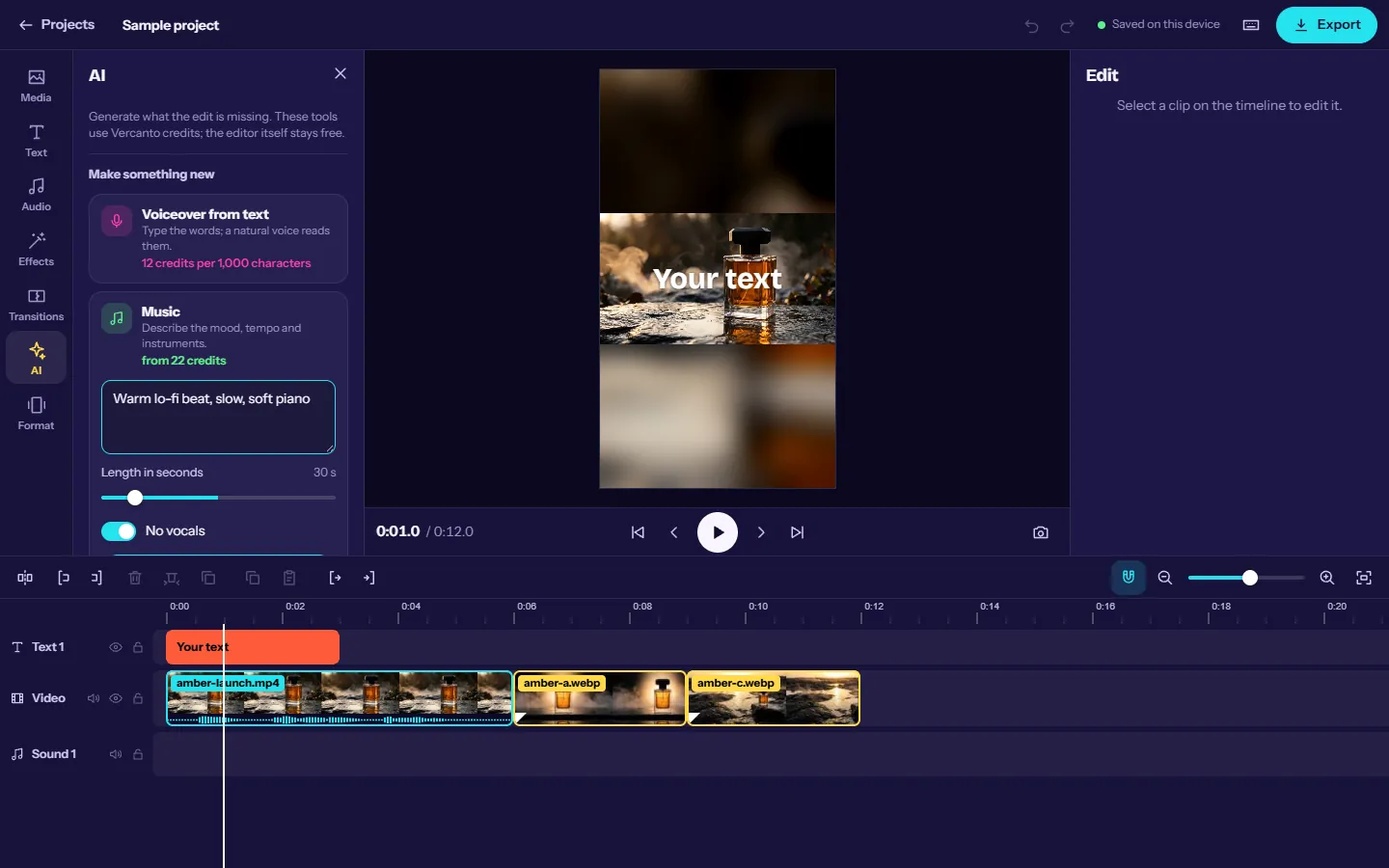 Uses creditsHow to make music for a video with AIDescribe the mood and length; the track lands under your video. Uses credits.
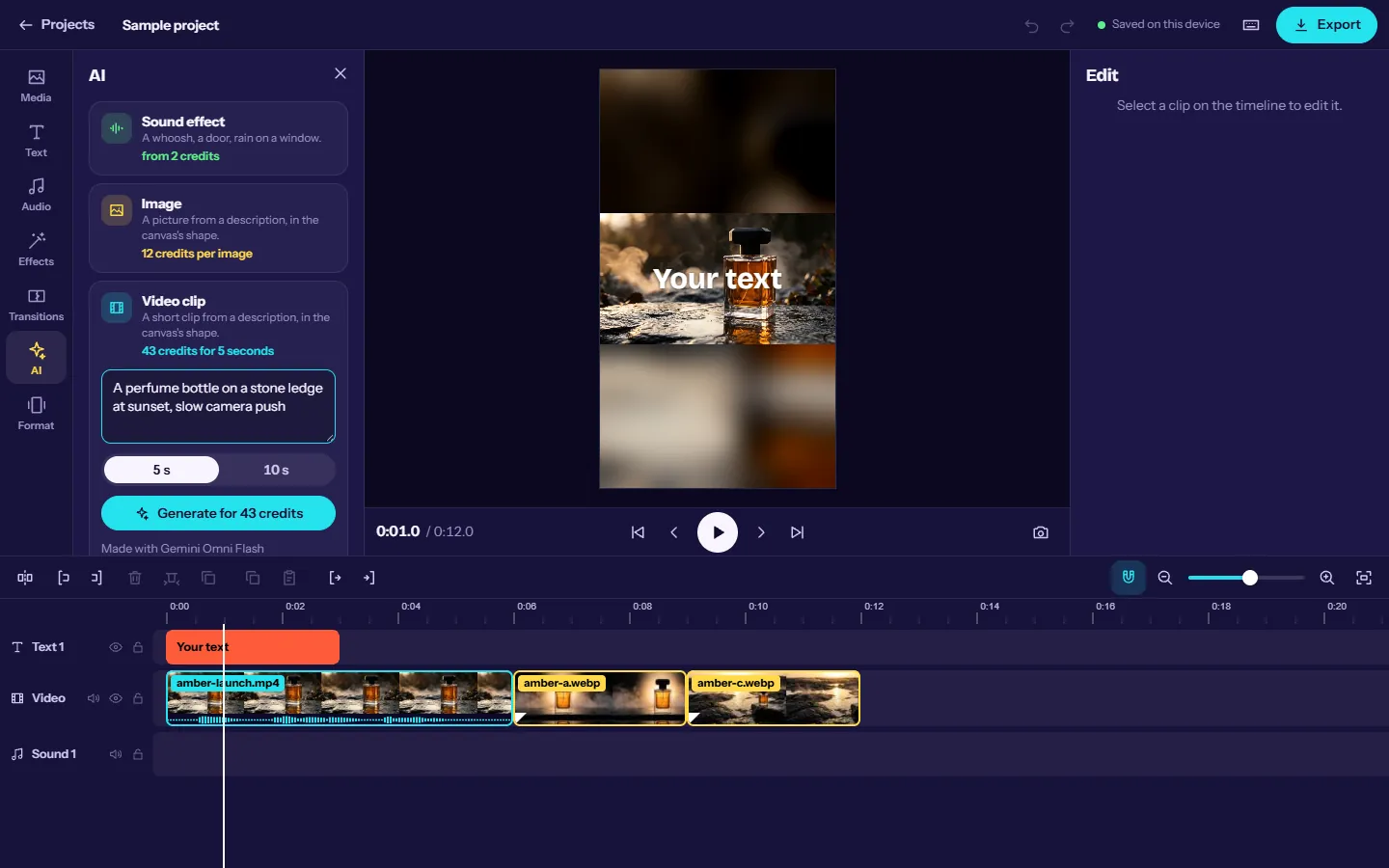 Uses creditsHow to make a video clip from a descriptionDescribe a shot and get a short clip in your canvas's shape, on your timeline. Uses credits.
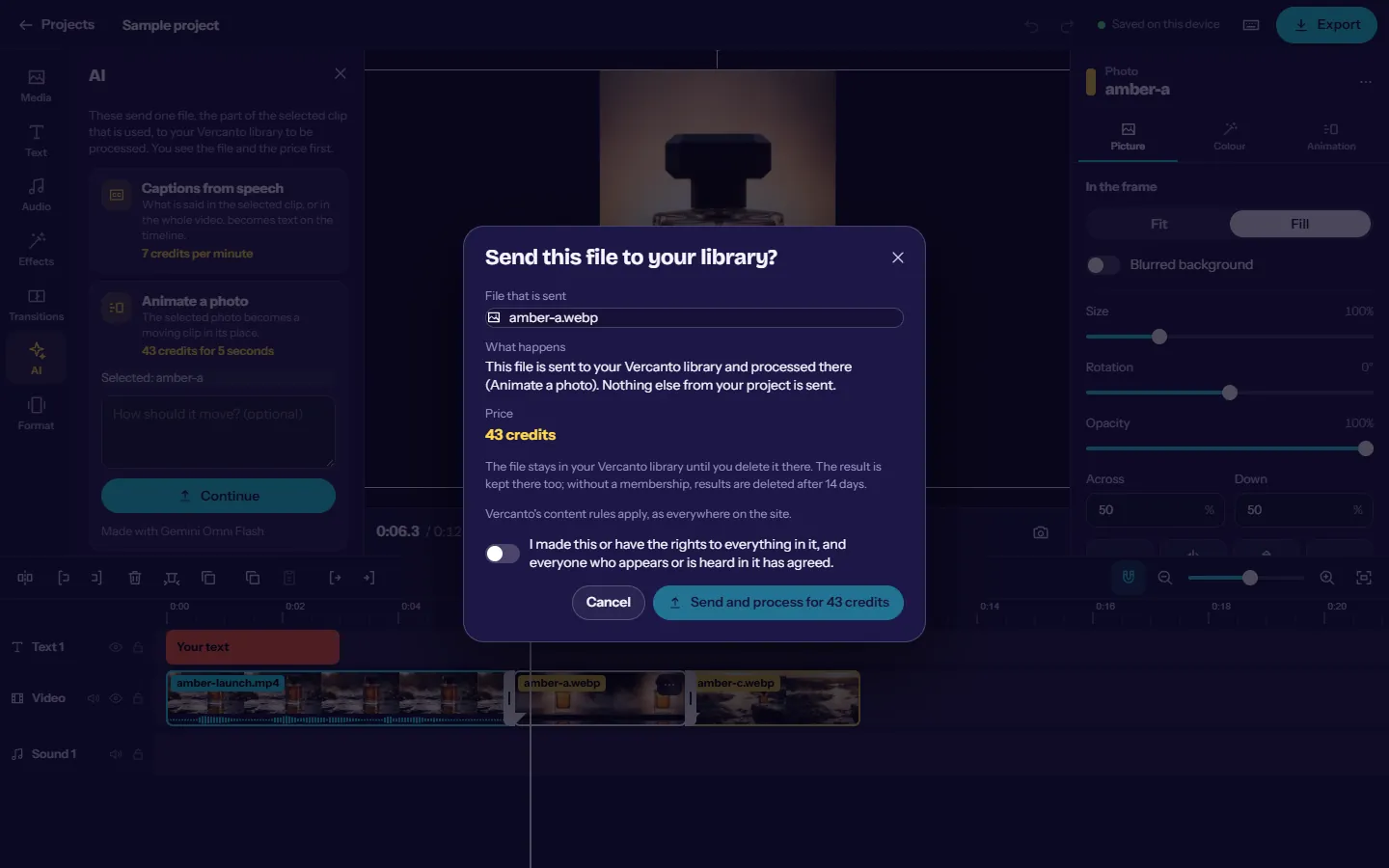 Uses creditsHow to turn a photo into a moving clipThe selected photo becomes a moving clip in its place. Uses credits; the photo is sent to your library first, after you confirm.
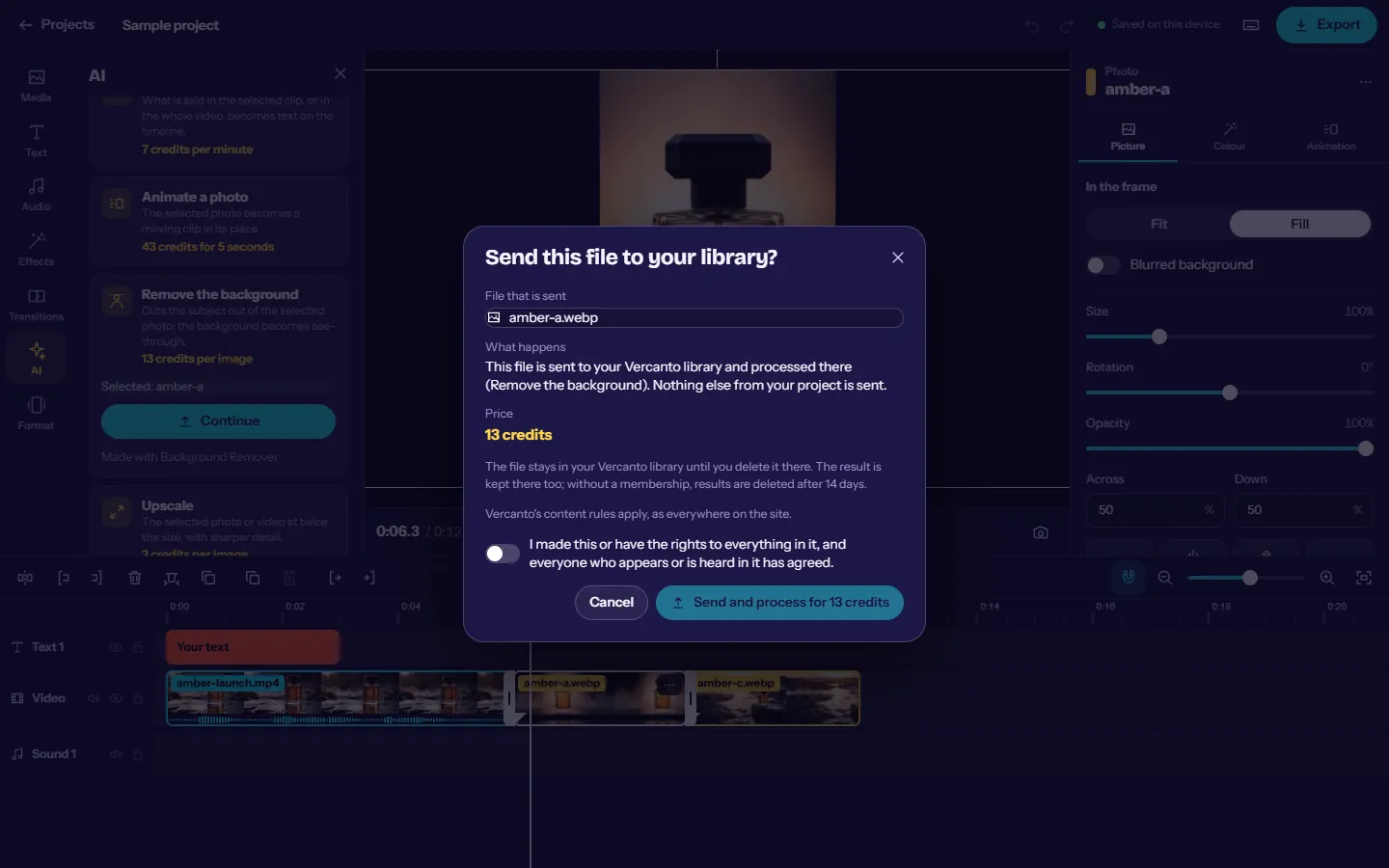 Uses creditsHow to remove the background of a photo in a videoCut the subject out of a photo on your timeline. Uses credits; the photo is sent to your library first, after you confirm.
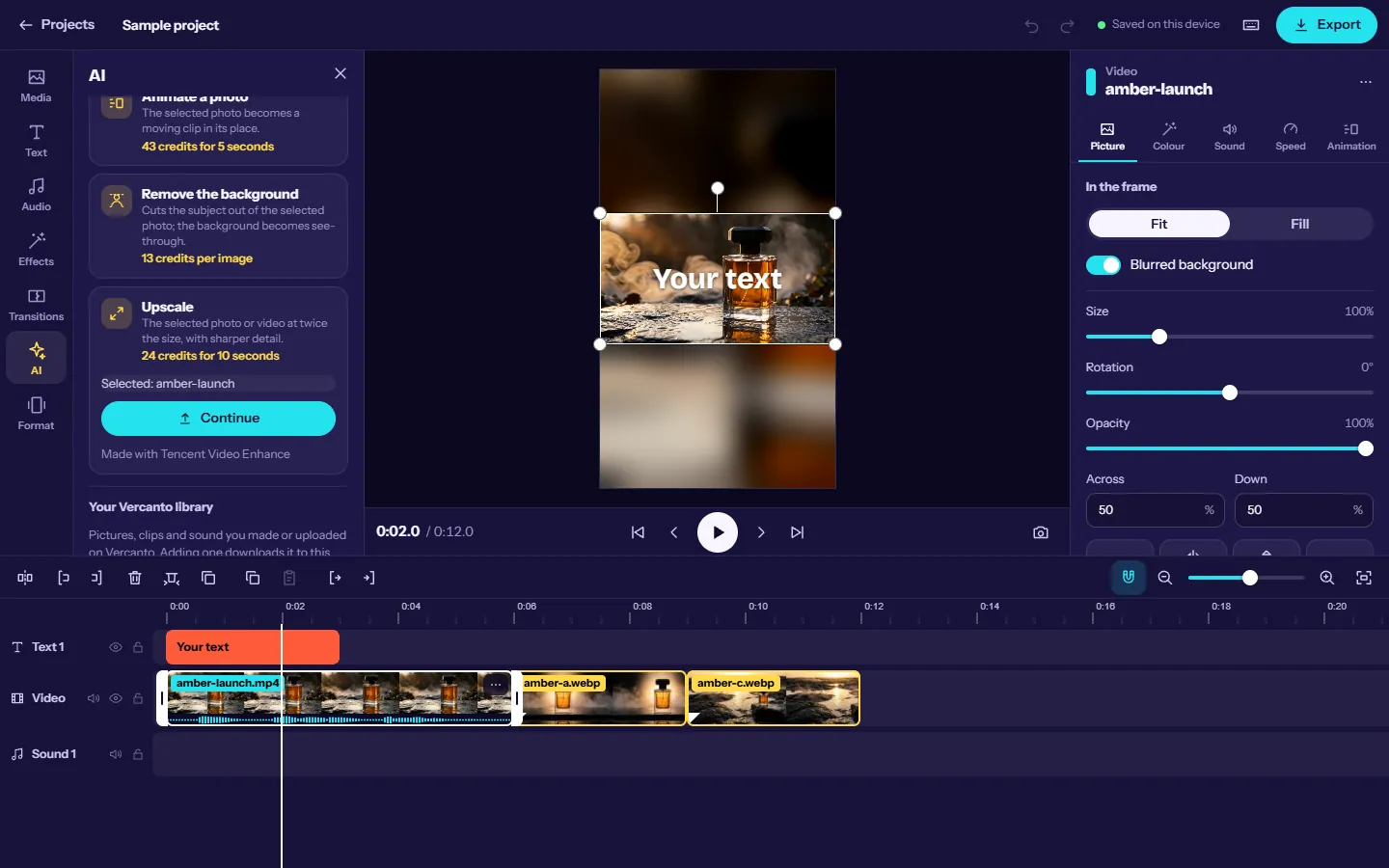 Uses creditsHow to upscale a video or a photoMake a clip or a photo twice as large with sharper detail. Uses credits; only the part you use is sent to your library, after you confirm.
Updated on .