




How to cut a video into parts online
Open your video in the Vercanto editor, move the playhead to where a part should end and press Split (or S). Repeat for every cut. Each part is then a clip of its own that you can move, delete or export. Cutting happens in your browser and sends your video nowhere, and the result has no watermark.
Free in the editor
Open the editor
Free, in your browser: no account, no watermark, no subscription required. Your files stay on your device unless you choose a paid AI action.
Steps
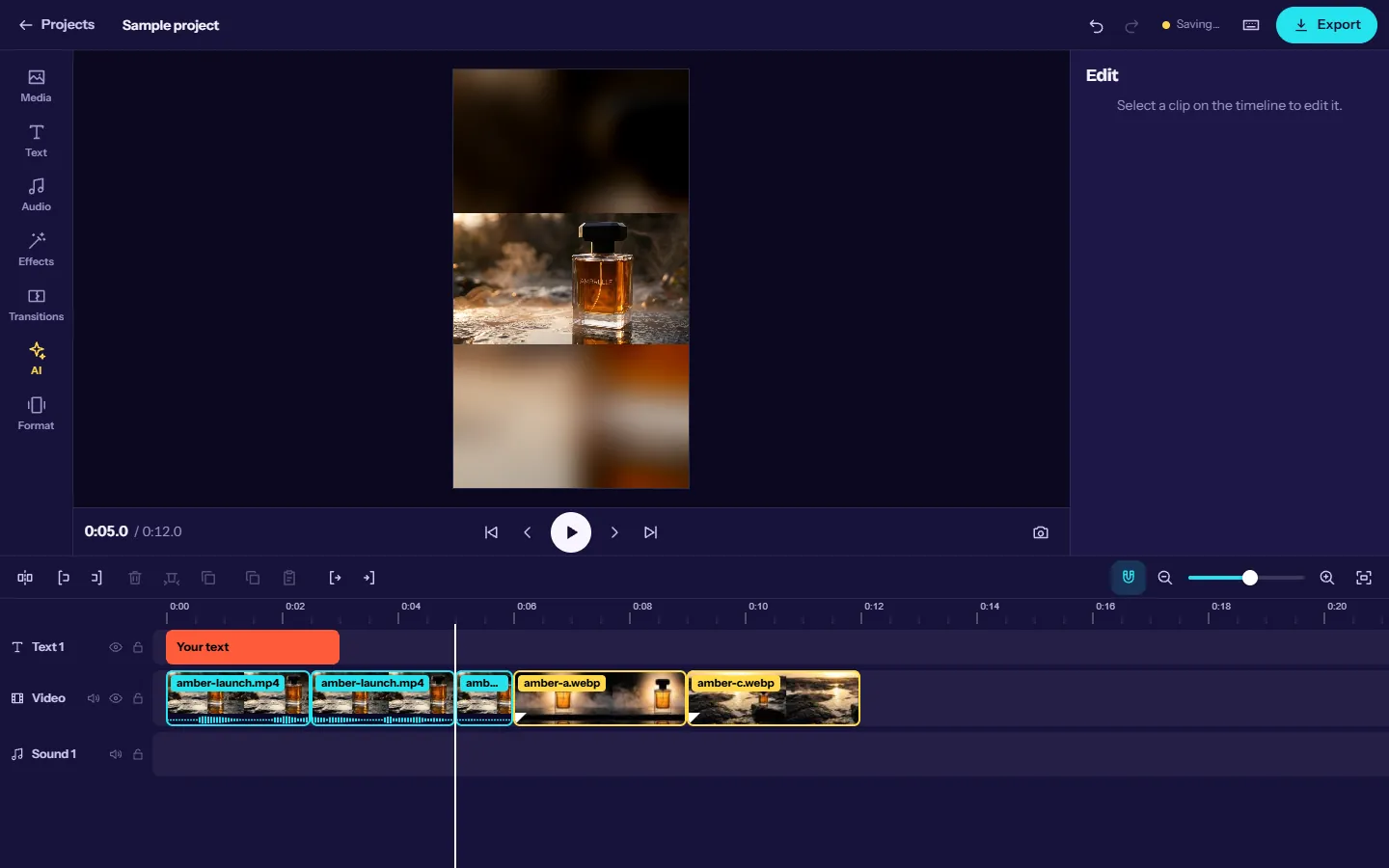
- Open vercanto.com/editor and choose your video (or drop it on the page).
- Move the playhead to the first place you want to cut: drag on the ruler, or on a phone swipe the timeline.
- Press Split in the timeline's tool bar, or the S key. On a phone, tap the clip, then Split in the bar below.
- Repeat for every cut. To cut one clip only, select it first; otherwise everything under the playhead is cut.
- Delete a part you do not need (Delete), or right-click it and choose "Export this clip" to save it as its own file.
Good to know
To cut at an exact frame, use the arrow keys (one frame) or Shift and an arrow (one second).
Updated on .