




How to turn a photo into a moving clip
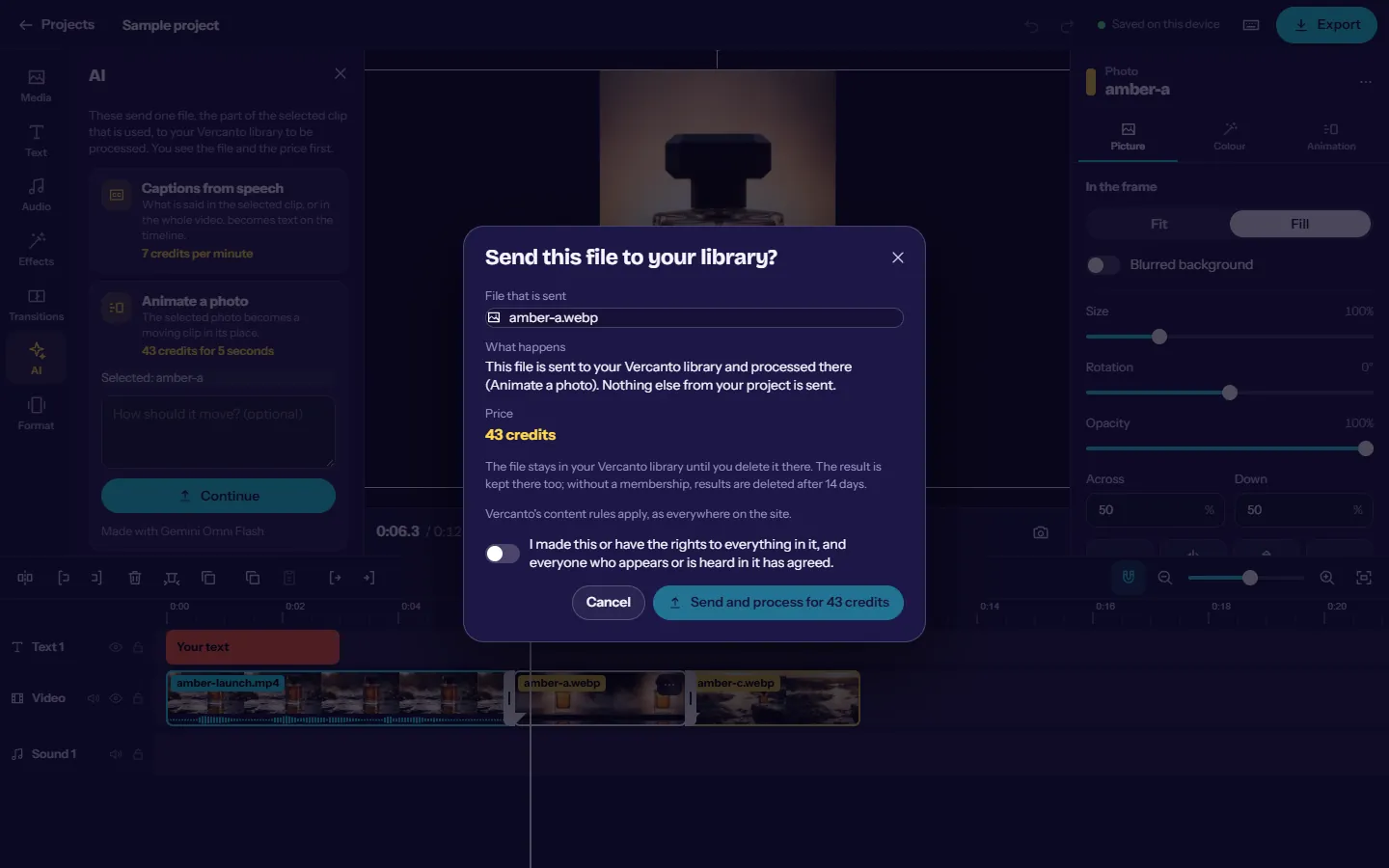
Select the photo on your timeline, open AI and choose "Animate a photo". You can say how it should move. It uses credits: after you see the file and the price and confirm, the photo is sent to your Vercanto library to be processed, and the moving clip then takes the photo's place.
Uses credits
Open the editor
Free, in your browser: no account, no watermark, no subscription required. Your files stay on your device unless you choose a paid AI action.
Steps
- Sign in to Vercanto. Put the photo on the timeline and select it.
- Open AI, then "Animate a photo"; describe the motion if you like.
- Press Continue and read the window: the file that is sent, the price, how long it is kept. Tick the rights box and send.
- When it is done, the clip replaces the photo, with the same position and look.
Updated on .