

Everything the free video editor does
The Vercanto video editor runs in your browser. There is no watermark and you do not need an account. Your files stay on your device unless you choose a paid AI action. Editing is free; the optional AI tools use Vercanto credits, and each shows its price before anything starts.
Open the editor
Free, in your browser: no account, no watermark, no subscription required. Your files stay on your device unless you choose a paid AI action.
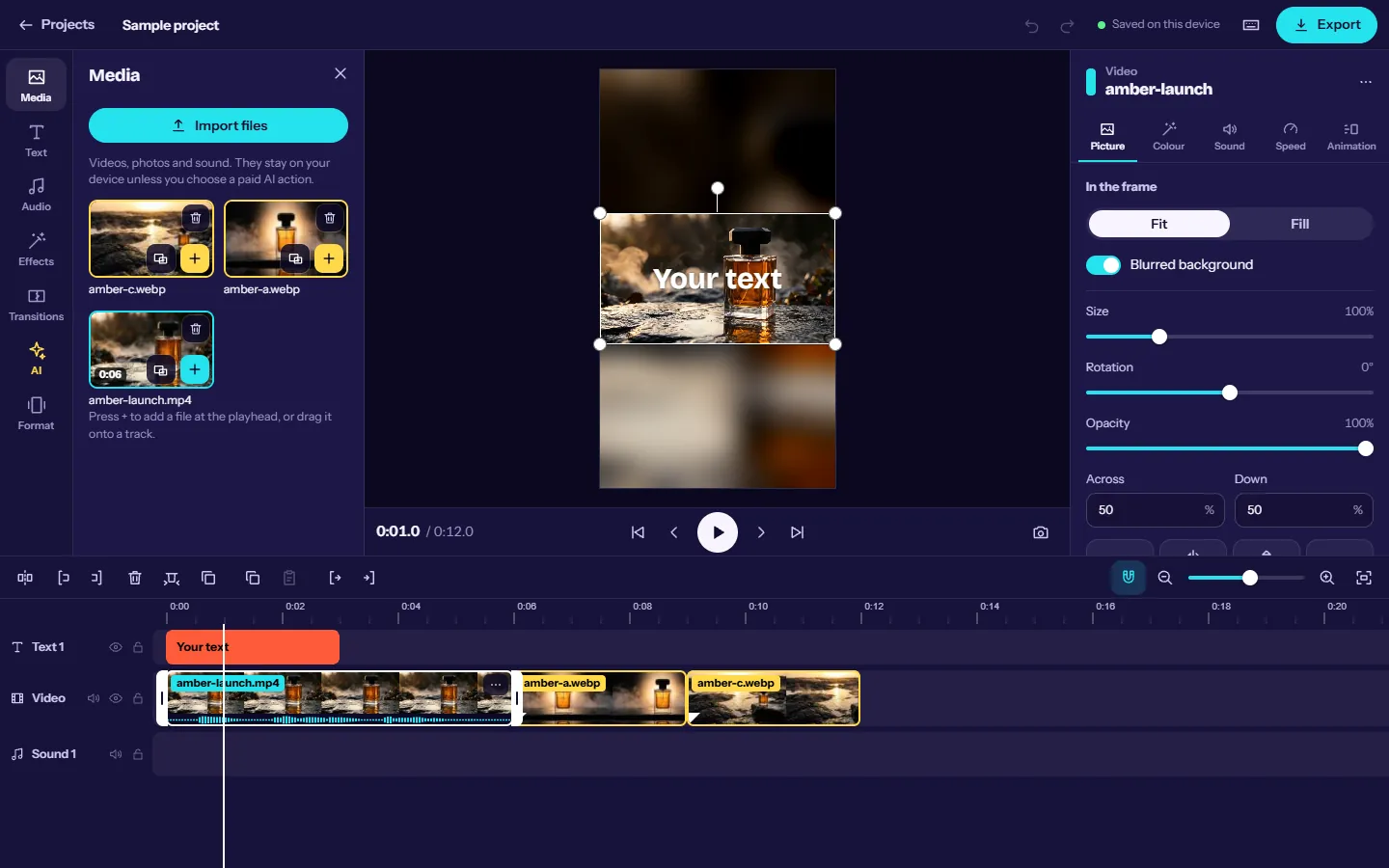
Media
- Import videos, photos and sound from your device: pick them, drop them on the editor, or paste a copied picture.
- Press + on a file to add it at the playhead, or drag it onto a track.
- Add a photo or a video as an overlay on top of the main video.
- A file that is missing on this device is shown as missing and can be chosen again.
- With a Vercanto account, add pictures, clips and sound from your Vercanto library.
Text
- Add text at the playhead, or start from one of six styles (title, subtitle, caption, outline, label, handwritten).
- Choose from 16 fonts, with weight, size, colour, alignment, line and letter spacing, and capitals.
- Give text an outline, a shadow or a background box.
- Move, resize and rotate text on the picture, and choose how it comes on and goes off.
Sound
- Lay music or a voice recording on its own track under the picture.
- Set a clip's volume, mute it, and fade it in and out.
- Take a video's own sound off into a separate clip, to cut and move it on its own.
- Change speed from a quarter to four times (the pitch follows the speed).
Effects
- Ten looks (vivid, warm, cool, black and white, noir, faded, vintage, teal and orange, dream, punch), each with a strength, shown on the clip's own picture.
- Brightness, contrast, saturation, warmth, tint and vignette.
- Apply a look to several clips at once, or use one clip's settings on every video and photo.
- Fill the empty sides of a picture with a blurred copy of itself.
Transitions
- Fade, dip to background, slide (four ways), zoom and wipe (two ways).
- Where two clips touch, a transition blends one into the next; on its own, it is an entrance or an exit.
- Set a transition's length, or put the same one on every cut of the main track.
Format
- Six shapes: 9:16 vertical, 1:1 square, 4:5 portrait, 16:9 wide, 4:3 and 3:4. Changing the shape keeps every clip where it is in the frame.
- 24, 25, 30, 50 or 60 frames a second, and a background colour.
Cutting on the timeline
- Split clips at the playhead.
- Trim a clip by dragging an edge, or trim its start or end to the playhead.
- Mark a part with in and out marks, then cut it out (the two sides join) or delete it and leave a gap.
- Delete a clip, or delete it and close the gap.
- Duplicate, copy, cut and paste clips.
- Select several clips (Shift or Ctrl and a click, a box drawn on the timeline, or Select several on a phone) and move them together.
- Several video, text and sound tracks; mute, hide or lock a track.
- Snapping to clip edges and the playhead; zoom with the slider, Ctrl and the wheel, or two fingers.
- Undo and redo every change.
- Right-click a clip, a track or the ruler (or hold your finger on it on a phone) for everything you can do there.
Export
- MP4 (H.264 and AAC) at 480p, 720p or 1080p, at 24 to 60 frames a second, in three quality grades.
- Export the whole video, one clip, a selection or a marked part, as its own file with its own name.
- Export the sound only, as M4A, Ogg or WAV.
- Save the frame you are looking at as a PNG.
- Where your browser cannot write MP4 with sound it writes WebM, and the editor says so.
- On a phone, share the finished file or save it to your photos.
- With a Vercanto account, save a finished video to your Vercanto library (only when you press that button).
Projects
- Projects save themselves as you work, in this browser on this device, and open again when you come back.
- They stay in this browser: another browser or device does not see them, and clearing the site's data deletes them. Export what you want to keep.
AI tools (they use credits)
Each tool shows its price before it starts, and asks you to sign in only when you use it.
- Make something new: a voice-over from text, music, a sound effect, an image, a short video clip. Only what you type is sent, and the result lands on your timeline.
- Change the selected clip: captions from its speech, animate a photo, remove a photo's background, upscale a photo or a video, clean up a voice. These send one file (the part of the clip that is used; for captions only its sound) to your Vercanto library to be processed, after you see the file and the price and confirm. The file stays in your library until you delete it; without a membership, results are deleted after 14 days.
Browsers
The editor checks what your browser can do before you start, and says so if it cannot.
| Computers | Current Chrome and Edge; Safari on Mac (16.4 or later); Firefox |
|---|---|
| Phones and tablets | Chrome on Android; Safari on iPhone and iPad (iOS 16.4 or later) |
| Not yet | Firefox on Android (it has no WebCodecs yet) |
File types
| Video in | MP4, MOV, M4V, WebM, MKV (H.264, VP8, VP9; AV1 and HEVC where the browser reads them) |
|---|---|
| Sound in | MP3, WAV, M4A, AAC, OGG, Opus, FLAC |
| Pictures in | PNG, JPEG, WebP, GIF (first frame), AVIF |
| Out | MP4 (H.264 + AAC); WebM (VP9 + Opus) or MOV with uncompressed sound where a browser cannot write MP4 with sound; sound only as M4A, Ogg or WAV; one frame as PNG |
What it does not do yet
- Keyframes (moving or resizing a layer over time), masks, chroma key (green screen).
- Picture-in-picture presets, shapes and stickers.
- Speed changes that keep the pitch.
- Recording from the microphone.
- GIF export and 4K export.
- More filters (blur, sharpen, grain) and animated text presets.
- Templates, and opening a project on another device.
How-to guides
Editing (free)
- How to cut a video into parts online
- How to remove a part from the middle of a video
- How to trim a video online
- How to save one part of a video as its own file
- How to make a vertical 9:16 video
- How to add text to a video online
- How to add music to a video online
- How to speed up or slow down a video
- How to blur the background of a video
- How to add captions to a video
Updated on .