

How to upscale a video or a photo
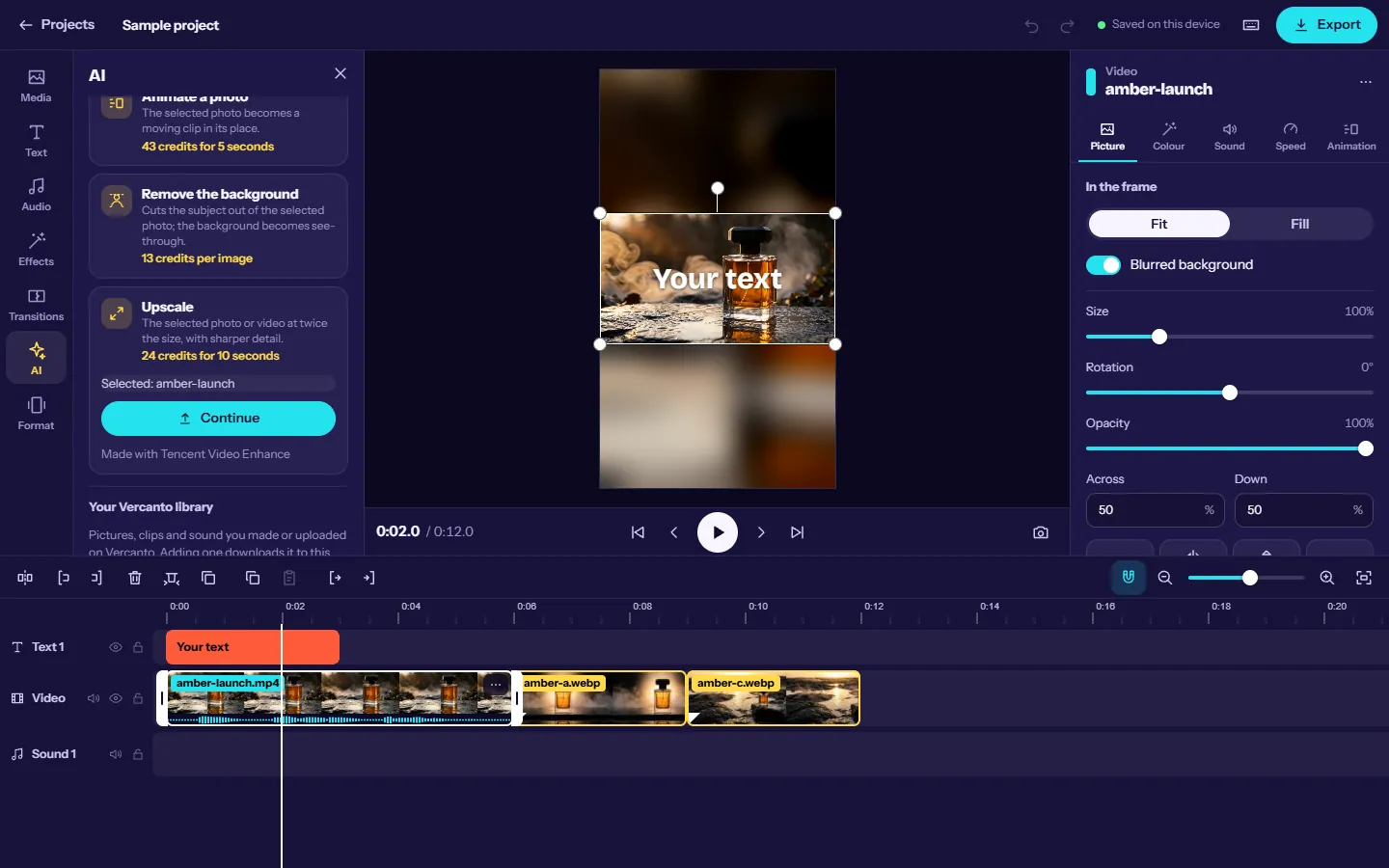
Select the clip or the photo, open AI and choose Upscale. It is made twice as large with sharper detail. It uses credits: only the part of the clip that you use is sent to your Vercanto library (made on your device), after you see the price and confirm. The clip then uses the sharper file and keeps all its settings.
Uses credits
Open the editor
Free, in your browser: no account, no watermark, no subscription required. Your files stay on your device unless you choose a paid AI action.
Steps
- Sign in. Trim the clip to the part you need first: you pay for the seconds that are sent.
- Select it, open AI, then Upscale, and press Continue.
- Check the file, its length, the price and the rights box, and send.
- Export at the size you need.
Updated on .