




How to remove a part from the middle of a video
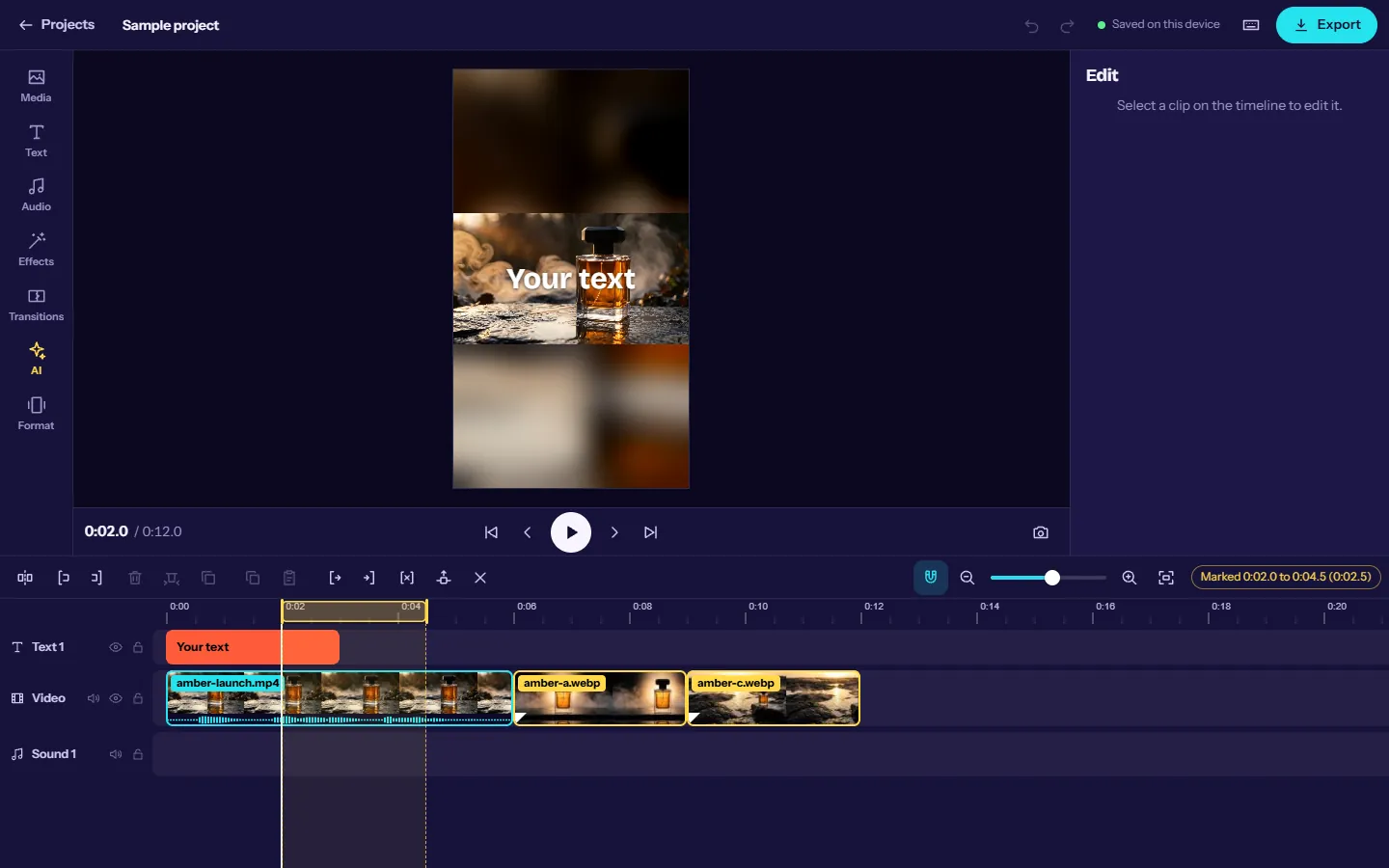
Mark where the unwanted part starts (I) and ends (O), then choose "Cut out the marked part" (Shift + X). The part is removed from every track and the two sides join, so the picture and the sound stay in step. To keep the time and leave a gap instead, choose "Delete the marked part, leave a gap".
Free in the editor
Open the editor
Free, in your browser: no account, no watermark, no subscription required. Your files stay on your device unless you choose a paid AI action.
Steps
- Open your video in the editor.
- Move the playhead to the start of the part you want to remove and press I (or Mark in).
- Move to its end and press O (or Mark out). The marked part shows on the ruler; drag its ends to adjust it.
- Press Shift + X, or choose "Cut out the marked part" from the tool bar or the ruler's menu.
- Play it back; undo (Ctrl + Z) if you want to try again.
Good to know
Another way: split at both ends of the part, select the middle clip and press Shift + Delete (delete and close the gap).
Updated on .