




How to save one part of a video as its own file
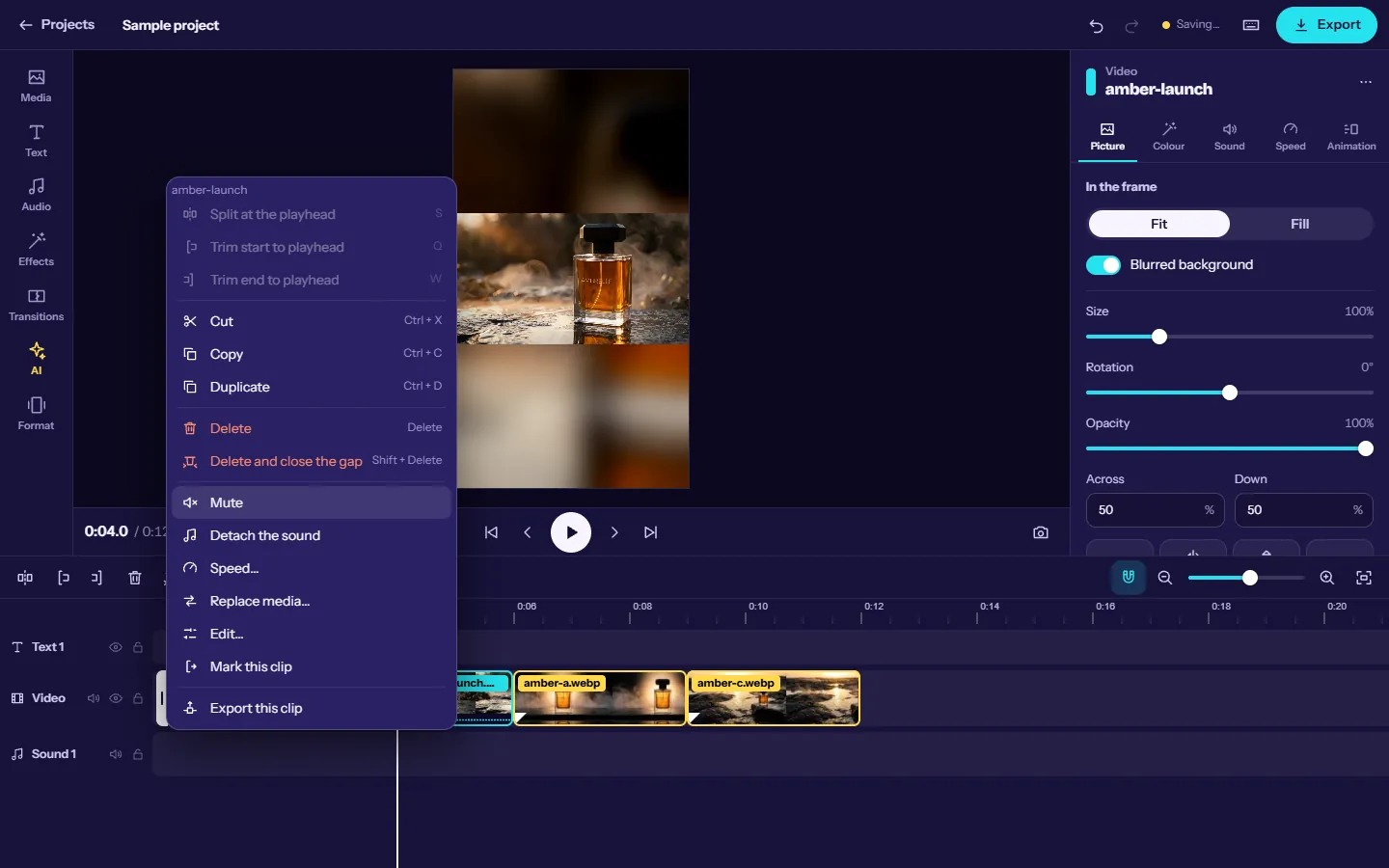
Right-click the clip (or hold it on a phone, or use its ⋯ button) and choose "Export this clip". It is exported on its own, with the same size and quality choices as the whole video, and the clip's name as the file name. For a stretch that crosses several clips, mark it with I and O and choose "Export the marked part".
Free in the editor
Open the editor
Free, in your browser: no account, no watermark, no subscription required. Your files stay on your device unless you choose a paid AI action.
Steps
- Cut the video into parts first if you need to (Split, or S).
- Right-click the part and choose "Export this clip". For several parts as one file, select them and choose "Export the selection as one file".
- Choose the resolution, frames per second and quality; change the file name if you like.
- Press "Export video" and wait: the file is made on your device.
- Download it, or share it from your phone.
Good to know
To keep only the sound, choose "Sound only" in the export window (M4A, Ogg or WAV).
Updated on .